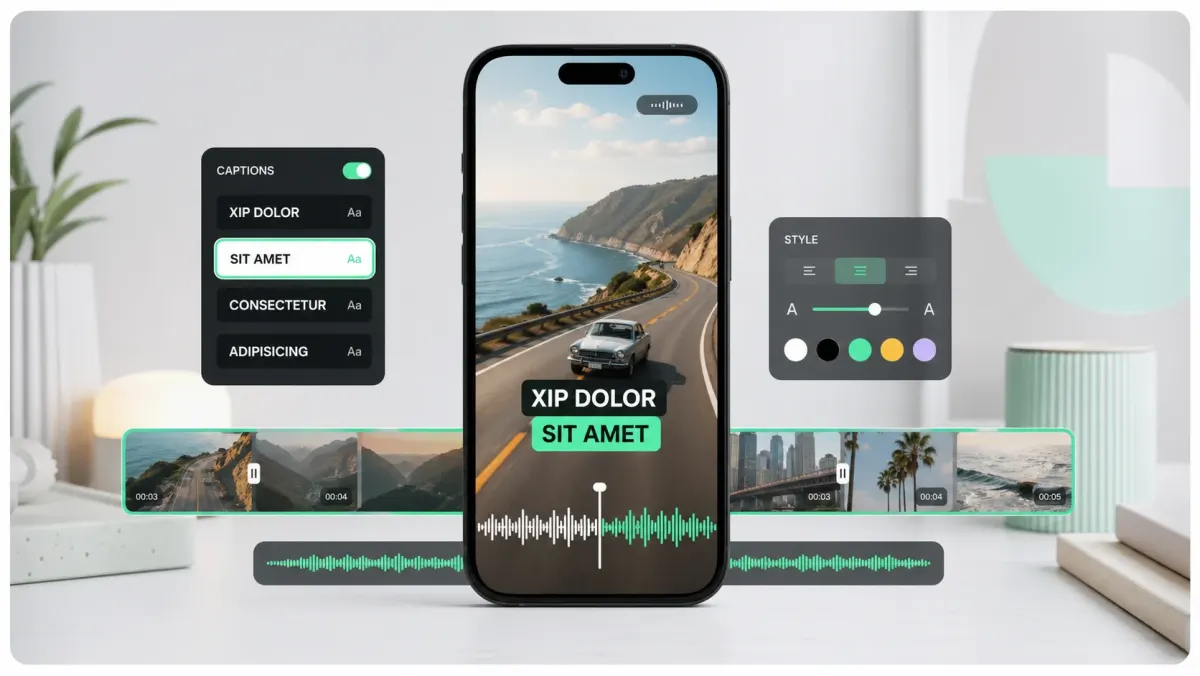
To add captions to a Twitter/X video, upload your video on x.com, choose the option to upload a caption file, select an SRT file, confirm the language, and post. X's own help documentation says SRT upload is available on web, and that uploaded caption files help ensure the audio is transcribed correctly when automatic captions are incomplete or wrong.
That is the formal caption route. For creators, marketers, and founders, there is a second route: burn captions directly into the video before posting. Burned-in captions cannot be toggled off, but they are visible immediately in the feed, survive reposts and downloads, and look exactly the way you designed them.
Method 1: upload an SRT file to X
- 01Create or export an SRT caption file for your final video.
- 02Open X on the web and start a new post.
- 03Upload your video file.
- 04Select the upload caption file option below the video.
- 05Choose the SRT file from your computer.
- 06Confirm the language and post when the caption file is attached.
Use this method when accessibility matters and you want viewers to be able to turn captions on or off. It is also useful for longer videos, public statements, educational content, and content where a clean caption file may be reused elsewhere.
Method 2: burn captions into the video
Burned-in captions are often better for feed performance because the viewer does not need to enable anything. The text is part of the video, so it appears during autoplay and remains visible even if the platform UI changes. This is the method most short-form creators use because it controls style, position, color, and timing.
- 01Upload your video to SoCaptions.
- 02Generate captions from the audio.
- 03Fix names, numbers, and technical terms.
- 04Choose a readable preset such as Bold Outline or Box.
- 05Export the captioned MP4 and upload that file to X.
Which method should you use?
Use an SRT file when accessibility and toggled captions are the priority. Use burned-in captions when immediate feed readability, brand style, and silent autoplay are the priority. For important campaigns, use both: upload a burned-in captioned video and attach an SRT file when available.
| SRT upload | Burned-in | |
|---|---|---|
| Visible on autoplay (sound off) | No — hidden behind CC | Yes |
| Toggleable / accessible | Yes | No |
| Custom styling | No — X renders default white-on-black | Yes — full control |
| Upload path | Web (x.com) only | Any device, any client |
| Survives reposts | Often lost | Always intact |
Troubleshooting X captions
If the caption upload option does not appear, try x.com on desktop, update the browser, re-upload the video, and confirm the file is a valid .srt. If captions attach but do not show, check language settings, reload the post, and test on another device. Platform caption display can depend on viewer settings and whether sound is on. For guaranteed visibility, burned-in captions are the more reliable route.
For most marketing clips on X, export burned-in captions with SoCaptions first. Add SRT only when the post is important enough to justify the extra accessibility step.
How to turn on captions when watching X (Twitter) videos
As a viewer on X, closed captions are hidden behind a CC toggle. On mobile, tap anywhere on the video to reveal the player controls, then tap the CC icon in the top-right corner. On desktop (x.com), hover over the video to reveal controls and click CC. If no CC button appears, the video does not have a caption file attached — only burned-in captions will be visible.
- Mobile (iOS / Android): tap the video → tap CC in the top-right corner of the player.
- Desktop (x.com): hover over the video → click CC in the player controls.
- No CC icon: the creator did not attach an SRT file. Only burned-in captions are available.
- Captions show in X's default white text on black background — creator styling is not preserved.
- Auto-generated captions: X does not auto-generate captions like YouTube. The creator must attach an SRT manually.
FAQ
Can you add captions to X (Twitter) videos?
Yes. On x.com (web), after uploading your video in the post composer, an option appears to add a caption file. Upload a valid .srt file and select the language. The captions are displayed as closed captions — viewers must tap CC to see them. Burned-in captions bypass this by making the text part of the video image, so they're always visible.
Does X (Twitter) support SRT captions?
Yes — X accepts SRT files through the web composer when posting video. Mobile apps don't reliably expose this option. If the caption upload doesn't appear, try the x.com desktop web interface and confirm your SRT file is formatted correctly with proper timestamps.
How do you turn on CC on X (Twitter)?
On mobile: tap the video to reveal player controls, then tap the CC button in the top-right corner. On desktop: hover over the video and click CC in the player overlay. If no CC button appears, the video has no attached caption file — only burned-in captions (text baked into the pixels) are visible without any toggle.
Why are there no captions on an X video?
Three reasons: (1) The creator didn't attach an SRT file — X does not auto-generate captions. (2) The caption file was attached but viewer CC is off — tap CC in the player. (3) The video uses burned-in captions that are part of the image — these are always visible without toggling. Most short-form creators on X burn captions in because the SRT upload flow is web-only and many viewers never tap CC.
What's the difference between SRT and burned-in captions on X?
SRT captions on X are toggleable — viewers must tap CC to turn them on. Burned-in captions are part of the video image and appear automatically during autoplay. For maximum reach, burned-in captions win because X autoplays on mute and most viewers never tap CC.
Does X (Twitter) auto-generate captions?
No — X does not automatically generate or attach captions to uploaded videos. Creators must manually upload an SRT file via the x.com web composer after uploading the video. This is different from YouTube, which auto-generates captions for most uploaded videos. If you see readable text on an X video, it is either a burned-in caption or the viewer manually enabled an attached SRT track.