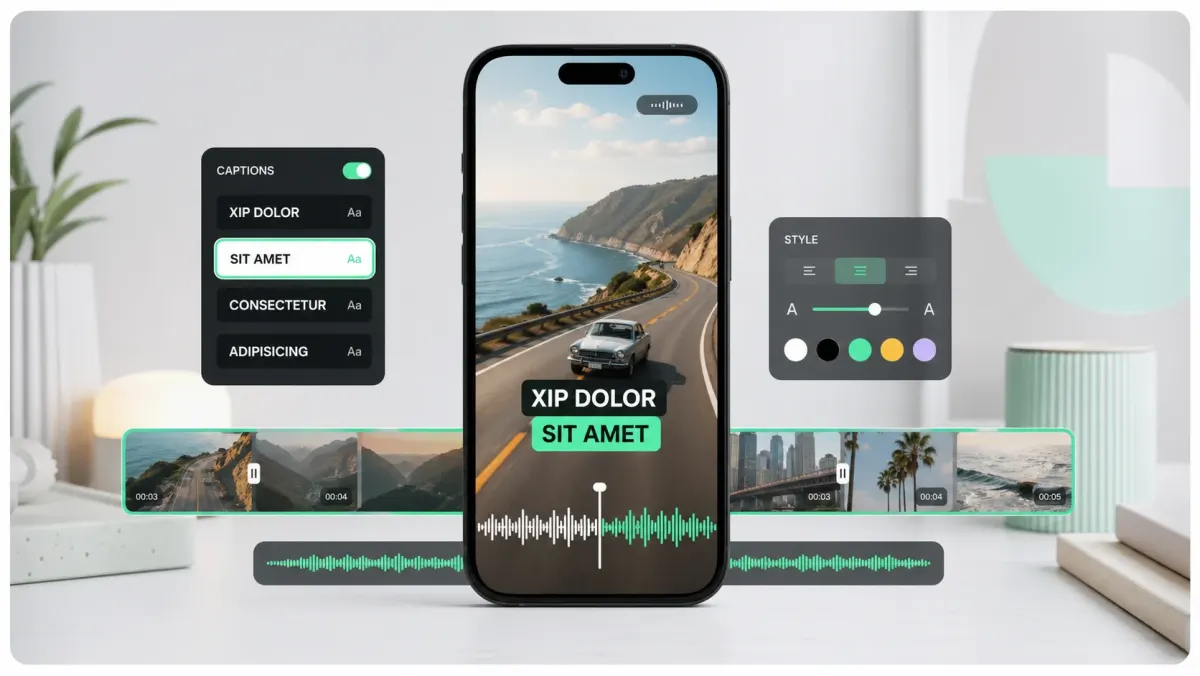
If CapCut auto captions are not working, first check the basics: update the app, confirm the video has clear speech, select the correct language, try a shorter clip, remove heavy background music, and test on another network. If the button is missing, the feature may not be available in your region, account, device, or current editing mode.
Auto-caption problems usually fall into five buckets: the feature does not appear, generation fails, captions are inaccurate, captions are out of sync, or captions disappear on export. Each problem has a different fix. Reinstalling the app can help, but it should not be your first move because it does not solve bad audio, wrong language, or timeline drift.
Problem 1: the auto captions button is missing
- Update CapCut to the latest version.
- Switch from template mode to a normal edit project.
- Try the mobile app if the desktop version is limited, or vice versa.
- Check whether your region or account has the feature.
- Sign out and back in if the interface looks incomplete.
Some CapCut features roll out unevenly. If tutorials show a button that you do not see, it may not be user error. It may be a feature availability issue. In that case, use a different caption workflow instead of spending an hour hunting for a missing control.
Problem 2: generation starts but fails
Generation failures often come from network interruptions, long files, unsupported formats, or audio that is hard to process. Export a shorter test clip, use a standard MP4, keep the audio track intact, and avoid generating captions while the app is still uploading or processing other assets.
- Try a 30-second section of the video.
- Remove or lower background music.
- Convert the video to a standard MP4.
- Restart the app and clear cache if the same file keeps failing.
- Test with a different clip to separate file problems from app problems.
Problem 3: captions are inaccurate
Inaccuracy usually means the model cannot hear the speech clearly. Common causes include music under the voice, room echo, multiple speakers talking over each other, accents the model handles poorly, clipped audio, and brand names or slang that are not in the model's vocabulary.
The fix is to improve the source audio or use a caption editor where transcript cleanup is fast. Correct names, numbers, URLs, product terms, and industry words manually. Those are the mistakes viewers notice most.
Problem 4: captions are out of sync
If captions are synced at first but drift later, you may have edited the timeline after generating captions. Generate captions after the final cut, not before. If the whole subtitle track is late or early by the same amount, shift it globally. If only one section is wrong, split and adjust that section.
Problem 5: captions disappear or don't render on export
Captions that look correct in the CapCut editor but disappear in the exported video are usually caused by one of three things: the caption layer was muted or hidden before export, you exported using a template share rather than a full project export, or the captions were added as a sticker element on a layer that didn't survive the selected export resolution.
- Check the layer visibility: tap each caption layer in the timeline and confirm it is not hidden.
- Export from the main project, not from a template share flow.
- Try a different export resolution — some caption sticker types don't survive 4K export in all app versions.
- If the captions are styled text stickers rather than the Auto Captions feature, re-render after confirming all layers are visible.
- Update the app: caption rendering bugs in specific export paths are usually patched within a few releases.
Problem 6: wrong language detected
CapCut auto-detects the audio language before generating captions. If the detected language is wrong, the transcript will be garbled. Open Auto Captions settings before generating and manually select the correct language. If your video mixes languages (code-switching), pick the dominant language — CapCut doesn't handle multilingual audio well.
A faster alternative: SoCaptions
If your goal is simply to caption a short-form video and export it, SoCaptions is often faster than debugging CapCut. Upload the clip, generate captions, fix transcript mistakes, choose a preset, and export. It is especially useful when you do not need a full editing suite and only want clean, styled captions.
Keep using CapCut if you are doing a full edit there. Use SoCaptions when the video is already cut and captions are the only remaining job.
FAQ
Why is the auto captions button missing in CapCut?
The Auto Captions button is missing most often because: (1) you are inside a Template project rather than a normal edit — templates lock many features; (2) your CapCut version is outdated — update the app; (3) the feature hasn't rolled out to your region or account type yet. Sign in to a CapCut account if you're using it as a guest — some features require a login.
Why are CapCut auto captions out of sync?
The most common cause of sync drift is editing the video timeline after generating captions. CapCut auto captions are tied to the exact video timestamps at the moment they were generated — if you cut, extend, or rearrange clips afterward, the captions don't shift with the edits. Always generate captions after the final cut. If the whole track is late or early by the same amount, select all caption clips and shift them globally.
How do I fix CapCut auto captions not generating?
If Auto Captions starts but fails: try a 30-second test clip first to isolate whether the issue is file length or audio quality. Convert the video to a standard H.264 MP4 if it's in an unusual format. Remove heavy background music from the audio track before generating. Restart the app and clear the cache. If the same video fails repeatedly on one device, test it on another — CapCut's transcription sends audio to a server and network issues can cause silent failures.
Are CapCut auto captions accurate?
CapCut auto captions achieve 90–95% accuracy on clean single-speaker audio in English. Accuracy drops to 80–88% for heavy accents, fast speech, or significant background noise. The model handles common words and sentence structures well but often misses proper nouns, product names, technical jargon, and non-English words. Always review the transcript and fix names, numbers, URLs, and industry terms before exporting.