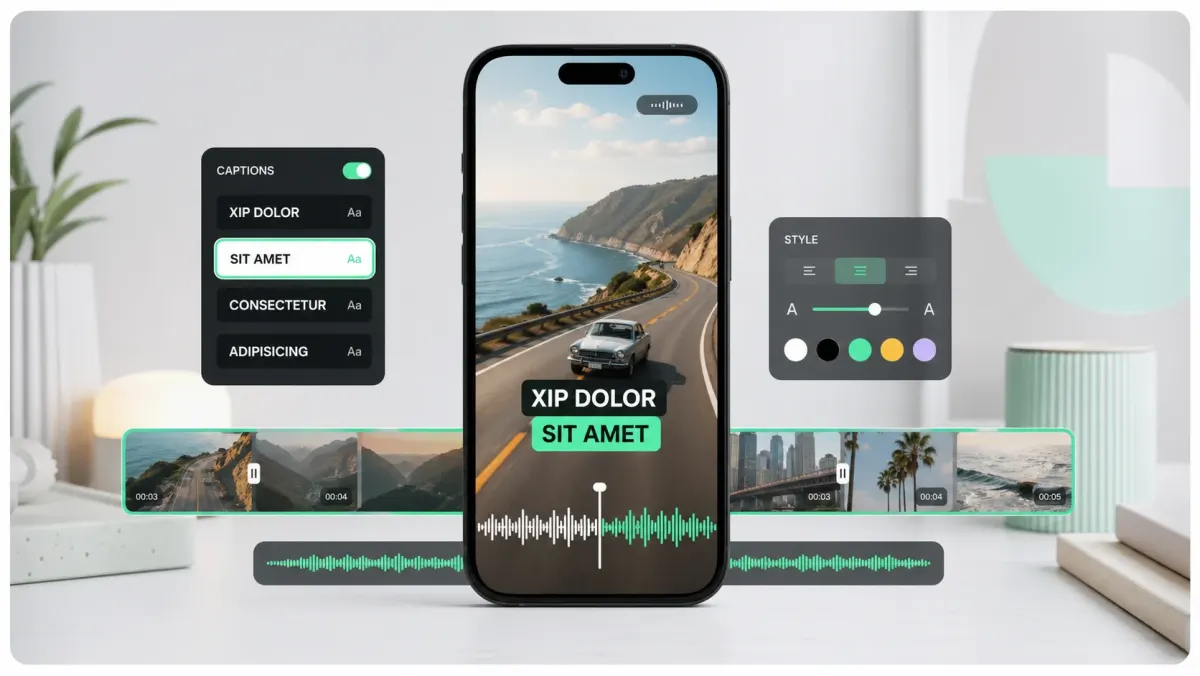
TikTok safe zones are the areas of a vertical video that are least likely to be covered by TikTok's native interface. In 2026, the practical rule is simple: export at 1080x1920, keep key text away from the top and bottom edges, avoid the right-side action column, and place captions in a controlled middle-lower band. TikTok's ad documentation still points advertisers to official safe-zone files for some placements, which is the clearest sign that safe zones are not optional for serious creative.
The problem is that TikTok is not a blank video player. A viewer may see your username, caption, sound, buttons, shopping labels, ad CTA, search bar, comments preview, or interactive anchors on top of the file you exported. The UI can also vary by device, region, account type, ad format, and active experiment. That is why safe zones should be treated as working margins, not exact mathematical promises.
The safe layout for 1080x1920 TikToks
- Top risk area: profile/search/status UI can crowd the first 180-250px.
- Bottom risk area: captions, username, sound, CTA, and progress controls can crowd the bottom 320-460px.
- Right risk area: like, comment, share, save, profile, and shopping buttons can cover the right 120-180px.
- Best caption area: center-lower, roughly above the bottom UI and away from the right action column.
- Best hook area: upper-middle or center, not flush to the top edge.
Use the free 1080x1920 overlay at /blog/tiktok-safe-zone-overlay-2026.svg in your editor: it marks the top 250px, bottom 420px, and right 170px as caution areas, so you can keep faces, captions, offer text, and logos inside the central field. Or toggle margins live at /tools/safe-zone-preview.
What belongs inside the safe zone
Put anything that must be read or recognized inside the safe zone: the hook, subtitles, price, discount, product name, face, important gesture, before/after label, and CTA. Background texture, decorative stickers, repeated patterns, and nonessential b-roll can enter the danger zones because losing them does not damage comprehension.
For creators, captions are usually the highest-risk element because they live near the bottom by habit. That habit comes from YouTube and TV subtitles, where the bottom of the frame is relatively clean. TikTok is different. The bottom is where the app puts metadata and interaction. If your captions sit too low, viewers may see a sentence cut through by username, music, comments, or ad buttons.
Caption placement that works on TikTok
- 01Put captions above the bottom UI, usually around the lower-middle third.
- 02Keep the caption block centered or slightly left of center so it avoids the right action column.
- 03Use two short lines instead of one long line that stretches toward the buttons.
- 04Add a stroke or box so the caption survives bright, moving, or cluttered footage.
- 05Preview with TikTok's own posting screen before publishing important videos.
If your video is a talking-head clip, the best default is to keep the speaker's eyes in the upper third and captions just below the mouth but above the bottom interface. If the video is a tutorial, keep the demonstrated action in the center and move captions into a compact box that does not cover the hands or product. If the video is an ad, keep offer text and CTA in the central area and let the platform CTA do the button work.
Common TikTok safe-zone mistakes
- Putting the main CTA at the very bottom because it looks like a button.
- Placing captions under the speaker's face but directly behind the username and description.
- Using right-aligned text that collides with the like/share column.
- Designing a cover frame that looks good in the editor but gets cropped in profile grid previews.
- Adding stickers or arrows that point into the platform UI instead of the product.
How SoCaptions helps
SoCaptions is useful here because the caption style is not separate from placement. A safe caption needs readable text, good timing, and a predictable position. Generate captions, choose a readable preset, then adjust vertical placement until the text clears the bottom UI. For most TikTok clips, start with Bold Outline or Karaoke and avoid overly wide caption blocks.
The value of a safe-zone workflow is consistency. Once you find a caption position that works for your footage style, save that as your channel default. Your audience should not have to re-learn where to read every time you post.
FAQ
What is the TikTok safe zone?
The TikTok safe zone is the area of a 1080×1920 video that remains visible after TikTok's UI overlays — username, caption, audio label, like/comment/share buttons, and CTA elements. The practical margins for 2026: avoid the top ~250px, the bottom ~460px, and the right ~180px. Key text, captions, faces, and CTAs should stay inside the central band.
Where should I place captions on TikTok?
Place captions between y:700px and y:1360px on a 1080×1920 canvas — above the bottom UI band and below the profile/search area. Center captions horizontally. Use a bold font with a thick stroke or plate so the text is readable over any background and survives TikTok's compression.
What size should TikTok captions be?
Use 60–90px font size on a 1080×1920 canvas. Anything smaller becomes hard to read at native mobile size, especially on older or smaller-screen phones. Bold or black weight at minimum — regular and thin fonts collapse under TikTok's video compression.
How do I check TikTok safe zones before posting?
Use the free safe zone preview tool at /tools/safe-zone-preview — it overlays the exact UI margins for TikTok, Reels, and Shorts on your frame. Alternatively, use TikTok's own editor preview, but note that the desktop preview doesn't always reflect how the UI renders on different phone models.