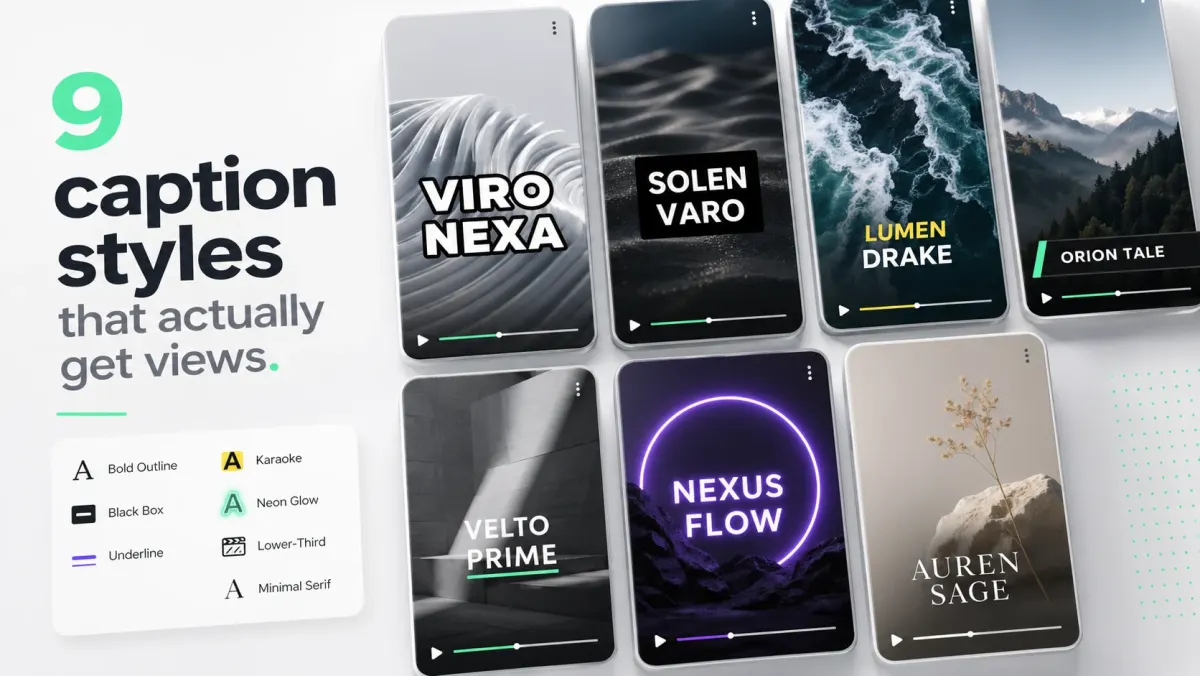
The best colors for video subtitles are high-contrast and stable across changing backgrounds. The safest default is white text with a black stroke or semi-transparent black box. Yellow is excellent for highlighting active words or key phrases, but it should still have a dark outline. Pure brand colors can work, but only if they remain readable on bright, dark, and busy footage.
Subtitle color is not an isolated design decision. It depends on font weight, stroke, shadow, background, placement, compression, and viewing environment. A color that looks beautiful in a design file may fail when the viewer watches on a dim phone in daylight.
The safest subtitle color combinations
- White fill + black stroke: best all-purpose choice.
- White text + translucent black box: best for tutorials and clean explainers.
- Yellow active word + white inactive words: best for karaoke captions.
- Black text + light box: useful on dark video, but less common on social feeds.
- Brand color highlight + white base text: best for consistent channel identity.
Why white works so often
White works because it is bright, familiar, and neutral. The problem is that white alone fails on skies, walls, snow, shirts, paper, product packaging, and bright UI. That is why the stroke or box matters. The dark edge creates contrast even when the fill color matches the background.
Do not judge white captions on a dark frame. Judge them on the brightest frame in the video. If they survive the worst frame with a stroke or plate, they will probably survive the whole clip.
When yellow is better
Yellow is excellent for emphasis because the eye notices it quickly. It works well for active-word karaoke captions, highlighted keywords, warnings, prices, and important claims. But yellow can fail on sand, sunlight, wood, warm indoor lighting, and skin tones if it has no outline.
Use yellow as a highlight color, not the only subtitle color, unless you also add a strong dark stroke or box.
Brand colors: useful but risky
Brand colors make captions recognizable, but they are rarely the most readable choice for every word. A better system is to use white for the main text and the brand color for the active word, underline, keyword, or small accent. That gives you identity without sacrificing readability.
SoCaptions uses this logic in caption presets: base text stays readable, while emphasis color adds rhythm. The result feels branded without forcing every sentence into a color that may not work over real footage.
Colors to avoid
- Pure red as body subtitle text: can vibrate visually and feel like an error state.
- Low-saturation gray: disappears on mobile and compressed video.
- Blue on dark footage: often lacks brightness unless heavily outlined.
- Neon gradients: attention-grabbing but inconsistent and hard to read.
- Any color without a contrast system behind it.
A practical subtitle color system
- 01Use white for the main caption text.
- 02Add a black stroke or black box.
- 03Choose one emphasis color: yellow, mint, red, or brand color.
- 04Use the emphasis color only on active words or keywords.
- 05Preview on the brightest and busiest frame before exporting.
Readable subtitles are usually simple. The more colors you add, the harder the viewer has to work. Pick one base, one edge, and one accent. Then use timing and line breaks to make the caption feel alive.
Production workflow
The practical way to apply this guide is to treat best colors for video subtitles: contrast, readability, and style as a repeatable production workflow, not a one-off fix. Start with the final video file, not the rough edit. Make the content understandable first, make the captions accurate second, and make the styling attractive third. That order prevents the most common mistake in video caption work: spending time on color, animation, or font choice before the words, timing, and placement are correct.
For short-form video, the workflow should be fast enough that you can use it every time you publish. If the process takes 45 minutes per clip, you will skip it when you are busy. A good caption workflow should fit inside the final polish pass: upload the final cut, generate captions, fix the transcript, choose the preset, check safe zones, preview on mute, and export. That is enough for most creator, founder, marketer, and agency clips.
- 01Watch the video once without captions and write the single idea the viewer must understand.
- 02Generate or paste the transcript and remove anything that distracts from that idea.
- 03Set caption timing before styling. Timing problems are more damaging than font problems.
- 04Choose one readable visual system: outline, box, karaoke, cinematic, or minimal.
- 05Check the worst frame in the video, not the cleanest frame.
- 06Preview the export at phone size with sound off.
- 07Publish only when the message is clear without audio.
Quality checklist before publishing
Use this checklist before publishing any video related to best colors for video subtitles. It is intentionally practical. The goal is not to create a perfect studio deliverable; the goal is to avoid the errors that cause people to swipe, misunderstand the message, or miss the call to action.
- The first caption appears early enough to support the hook.
- No caption is hidden by platform buttons, username text, captions, CTA buttons, or progress controls.
- Every important proper noun, number, price, URL, and product name is spelled correctly.
- Lines break around phrases instead of splitting random words.
- The caption block uses enough contrast on the brightest frame.
- The style matches the content category: louder for fast social, cleaner for tutorials, calmer for B2B.
- The video still makes sense with sound off.
- The export was checked after rendering, not only inside the editor preview.
- The caption position is consistent with other videos on the same channel.
- The final CTA is visible, readable, and not competing with native platform UI.
Common mistakes to avoid
The biggest mistake is treating captions as decoration. Captions are part of the content layer. They carry meaning, pace, emphasis, accessibility, and retention. If they are late, too small, hidden, or hard to read, the viewer does not experience them as a design flaw; they experience the whole video as harder to watch.
The second mistake is designing for the editor canvas instead of the feed. Editors show a clean preview. Social platforms add buttons, labels, captions, comments, compression, and device variation. Always assume the published version will be harsher than the preview. More margin, stronger contrast, and shorter lines are usually better than a layout that looks elegant only in the editor.
- Do not put the most important text at the very bottom of vertical video.
- Do not use thin fonts for fast speech or small mobile viewing.
- Do not rely on color alone for emphasis if contrast is weak.
- Do not generate captions before the edit is final unless you expect to redo timing.
- Do not export once and assume every platform will display the file the same way.
How to use SoCaptions for this
SoCaptions is built for the practical version of this workflow: quick caption generation, editable transcript cleanup, readable presets, and export-ready MP4 captions for social video. Use it when the edit is mostly done and the remaining job is to make the words visible, timed, and polished. That is where a focused caption tool is faster than opening a full video editor and rebuilding a caption system from scratch.
The best SoCaptions workflow is simple. Upload the final video, generate captions, fix the transcript, pick a preset, adjust placement for the platform, preview the full clip, and export. For high-volume creators, save a consistent style and reuse it. Consistency matters because viewers learn where to read your captions and begin to recognize your videos before they consciously notice the branding.
Try the workflow on a real 20-40 second clip before changing your whole process. One finished export will tell you whether the caption style, placement, and timing are strong enough for your channel.
FAQ
What is the fastest way to handle best colors for video subtitles?
The fastest reliable method is to work from the final video, use an automatic caption or transcript tool, fix only the meaningful mistakes, and apply a proven preset instead of designing from zero. Manual control is useful, but manual setup is expensive if you repeat it for every clip. Use automation for the repetitive timing work and spend your attention on clarity, placement, and final review.
Should I use burned-in captions or a caption file?
Use burned-in captions when you need every viewer to see the text immediately in a social feed. Use a caption file such as SRT or VTT when accessibility, toggling, translation, or platform-native playback matters. For important videos, the strongest workflow is often both: a captioned social export for reach and a clean transcript or caption file for accessibility and reuse.
How do I know if the captions are readable enough?
Preview the video on a phone-sized screen with sound off. If you can understand the point without leaning in, pausing, or replaying, the captions are probably readable. Then check the brightest frame, the busiest frame, and the final export after compression. Readability is proven in the worst viewing condition, not the best screenshot.
How much should I customize the style?
Customize enough to fit your brand, but not so much that the captions become harder to read. Most channels need one dependable default and one alternate style for special clips. Constantly changing fonts, colors, and animation makes the content feel less consistent and slows production. A simple repeatable style usually beats a new design for every post.
What should I measure after publishing?
Measure retention, average watch time, completion rate, rewatches, comments that mention clarity, and whether viewers understand the call to action. View count alone is too noisy. If caption improvements work, you should see fewer early drop-offs and better comprehension on clips where the spoken message matters.
