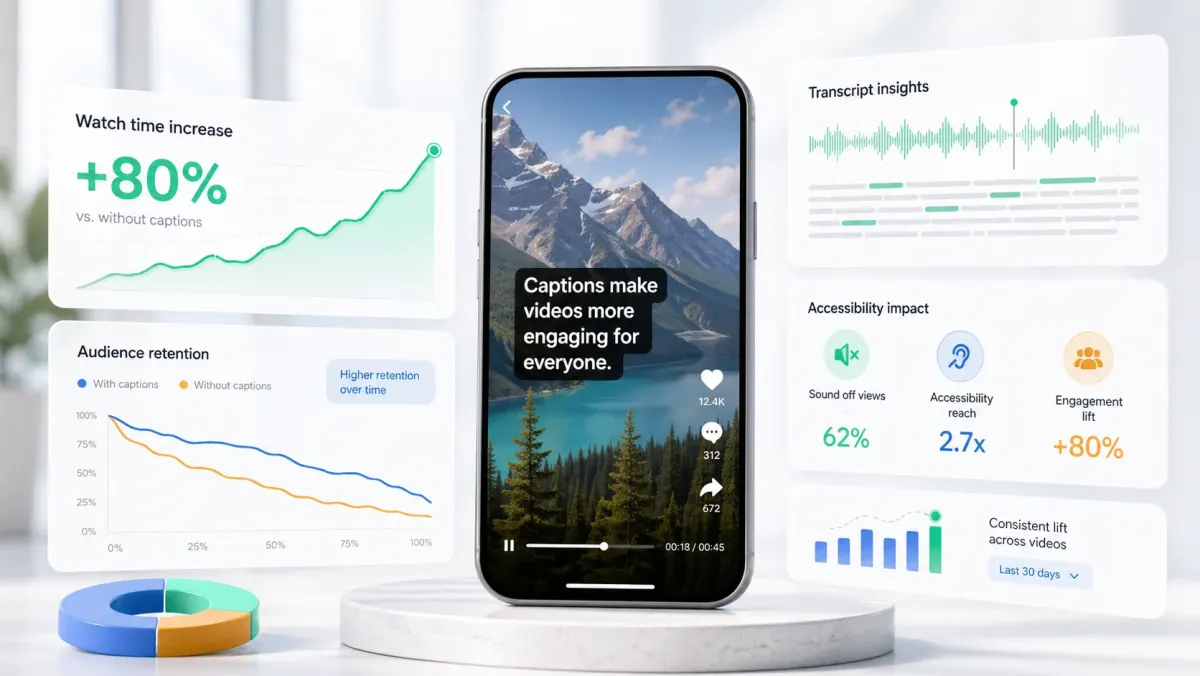
LinkedIn video captions make muted autoplay understandable and give viewers a way to follow the message without sound. This guide covers how to add captions to LinkedIn video, when to use burned-in captions versus SRT, and how to size and style the result for the feed.
Burn captions into your video with SoCaptions, export the MP4, and upload straight to LinkedIn. See the links below for platform-specific specs and a burned-in vs SRT comparison.
Why LinkedIn video needs captions
LinkedIn videos often appear in muted autoplay, so captions help viewers understand the hook before they decide whether to turn sound on. LinkedIn supports both automatically generated captions and uploaded SRT files; review the text before publishing, especially for names, acronyms, and product terms.
- Use burned-in captions when the text must be visible in every feed context.
- Use an SRT when viewers need toggleable closed captions or you want to keep the video image clean.
- Proofread names, acronyms, numbers, and product terms before publishing.
- For cross-posting, keep the burned-in MP4 and SRT as separate deliverables.
How to add captions to LinkedIn video
There are two methods, and the best workflow uses both. First, burn captions directly into the MP4 file so they're visible the instant the video autoplays. Second, upload an SRT file through LinkedIn's caption upload flow for accessibility and search indexing.
Method 1: Burn captions into the video
- 01Upload your final video to SoCaptions.
- 02Generate captions (Whisper transcribes in 10–30 seconds).
- 03Pick a style — Box or Bold Outline work best on LinkedIn's mixed-device feed.
- 04Export the MP4 with captions burned in.
- 05Upload the captioned MP4 to LinkedIn.
Method 2: Upload an SRT file
- 01In the LinkedIn post composer, upload your video.
- 02Click the pencil/edit icon on the video preview.
- 03Select 'Add captions' and upload your .srt file.
- 04LinkedIn will display toggleable closed captions in the player.
LinkedIn video caption sizes and safe zones
LinkedIn's feed renders video in three places: mobile vertical autoplay (1080×1920), desktop in-feed (1920×1080 cropped to ~16:9 in the feed), and the full lightbox view. Caption design has to work in the worst of those — usually mobile, where text appears smaller than the design preview suggests.
- Use a font size that's at least 5–6% of frame height (≈55px on 1080-tall video).
- Keep the caption block centered horizontally and vertically — LinkedIn doesn't crop the same way TikTok does.
- Avoid the bottom 12% of frame on vertical video — the like / comment chrome covers it.
- High-contrast text wins. White on solid background is more readable than fancy karaoke colors at LinkedIn scroll speed.
- For horizontal (16:9) video, use 48–60px font on a 1920×1080 canvas.
Best caption styles for LinkedIn
LinkedIn's audience skews professional. The styles that work on TikTok (neon, karaoke highlight, word-by-word reveal) can feel out of place. The two styles that consistently perform on LinkedIn are Box (white text on a semi-transparent dark plate) and Bold Outline (white text with a thick black stroke). Both survive LinkedIn's aggressive video compression and read well on both phone and desktop.
- Box style: clean, professional, high readability on any background.
- Bold Outline: slightly more energetic, works for thought-leadership clips.
- Avoid: neon glow, animated shake, or overly casual styles.
- Font choice: Inter, Geist, or any modern sans-serif at semibold or bold weight.
SRT vs burned captions on LinkedIn
LinkedIn's closed captions (SRT upload) are accessibility-grade but invisible by default — viewers must click the CC button. Burned captions are visible the instant the video autoplays. The right answer is both: burn the visual captions for retention and reach, attach an SRT for accessibility compliance and LinkedIn's search index.
How LinkedIn compares to other platforms
LinkedIn's caption requirements sit between TikTok/Reels (aggressive, styled, mandatory burned-in) and long-form YouTube (SRT upload is enough, since viewers opt in with sound on). Knowing where LinkedIn sits helps you decide how much styling effort a clip deserves before you repurpose it across platforms.
| Platform | Caption method | Native CC visible by default? | Typical font size |
|---|---|---|---|
| Burn in + SRT upload | No — hidden behind CC toggle | 44–56px (1080-wide canvas) | |
| TikTok / Reels / Shorts | Burn in required | No — auto-captions are unreliable | 60–80px (1080-wide canvas) |
| YouTube (long-form) | SRT upload sufficient | Yes — CC button is prominent | N/A — player-rendered |
| X / Twitter | Burn in required | No — soft captions rarely display | 56–70px (1080-wide canvas) |
LinkedIn video format and specs
MP4 with H.264 video and AAC audio. Caption file should be SRT — LinkedIn doesn't accept VTT through the publish flow as of early 2026. Maximum video length is 10 minutes for most accounts. Recommended resolution: 1080×1920 for vertical, 1920×1080 for horizontal.
- Format: MP4 (H.264 + AAC)
- Caption file: SRT only
- Max length: 10 minutes
- Vertical: 1080×1920 (9:16)
- Horizontal: 1920×1080 (16:9)
- Frame rate: 30 fps
- Bitrate: 8–15 Mbps for clean compression
Common mistakes with LinkedIn video captions
- Using only SRT upload without burned-in captions — most viewers never toggle CC on.
- Font too small — LinkedIn's desktop feed renders video smaller than you'd expect.
- Captions placed in the bottom 12% — covered by LinkedIn's engagement buttons.
- Using TikTok-style karaoke on a B2B audience — reads as unprofessional.
- Forgetting that LinkedIn compresses video heavily — thin fonts disappear.
FAQ
Does LinkedIn auto-generate captions?
LinkedIn has a built-in auto-captions feature for organic video posts, but it's inconsistent and can't be styled. For reliable, branded captions that appear immediately in the feed without the viewer clicking CC, burn captions into the MP4 before uploading.
What caption file format does LinkedIn accept?
LinkedIn accepts SRT files through the web composer. Upload your video, click the pencil icon on the video preview, then select 'Add captions' and upload the .srt file. LinkedIn does not accept VTT as of early 2026.
Do LinkedIn captions help with reach?
Yes — LinkedIn's algorithm indexes SRT caption text for topic matching, which means captioned video surfaces in more relevant feeds. Burned-in captions boost dwell time (because muted viewers keep watching), which the algorithm also treats as a positive engagement signal.
What font size should LinkedIn captions be?
Use at least 5–6% of frame height — roughly 55px on a 1080-tall vertical video. LinkedIn renders video smaller in the desktop feed than the preview suggests, so err larger. Bold weight with a stroke or background plate survives the platform's heavy video compression.