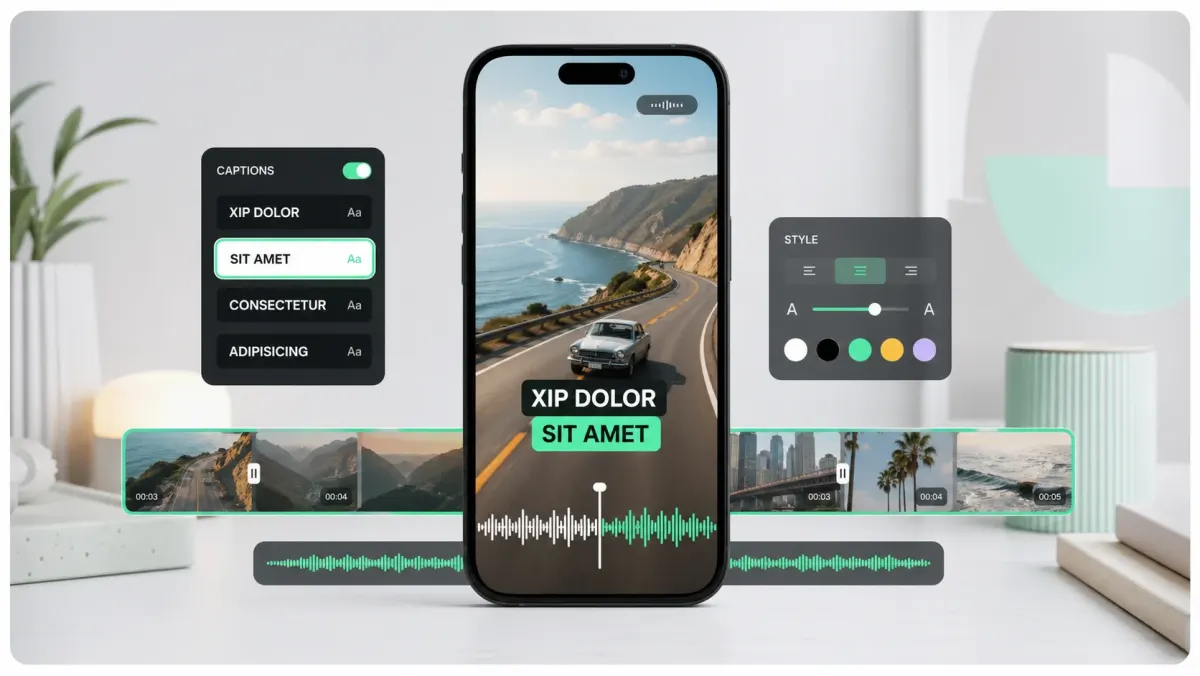
SoCaptions burns styled captions into MP4 for TikTok, Reels, Shorts, and LinkedIn — word-level timing, safe-zone preview at /tools/safe-zone-preview, five minutes free.
Burned-in captions (also called open captions or hardcoded subtitles) are rendered permanently into the video pixels. They can't be turned off, restyled, or translated after export. Closed captions are a separate text track (SRT, VTT, or platform-native) that the viewer can toggle on or off. The two serve different purposes, and the best workflow delivers both.
This guide covers the practical differences, when each type wins, how to deliver both efficiently, and the accessibility and compliance implications of choosing one over the other.
What are burned-in captions?
Burned-in captions are text rendered directly into the video frame during export. They become part of the image — every pixel of the caption is baked into the MP4 file. The viewer sees them regardless of platform, player, or device settings. They survive downloads, re-uploads, screen recordings, and cross-posts.
- Always visible — no toggle needed.
- Brand-controlled styling: font, color, animation, position.
- Survive every cross-post and re-encode.
- Cannot be turned off, translated, or restyled after export.
- Also called: open captions, hardcoded subtitles, hardsubs.
What are closed captions?
Closed captions are a separate text track delivered alongside the video. The player renders them on top of the video at playback time. Viewers can toggle them on or off, switch languages, and often adjust size and color. Platforms like YouTube, Vimeo, and Netflix use closed captions as their primary accessibility mechanism.
- Toggleable — viewer controls visibility.
- Multi-language support via separate tracks.
- Viewer can adjust size, font, and color on most platforms.
- Indexed by search engines and platform algorithms.
- Delivered as SRT, VTT, TTML, or platform-native format.
When to use burned-in captions
Burn captions in when the platform doesn't reliably render closed captions, when you need brand-controlled styling, or when the video will be cross-posted to multiple platforms from a single file.
- TikTok — no reliable closed caption support for uploaded videos.
- Instagram Reels — closed captions exist but most viewers never enable them.
- YouTube Shorts — burned-in ensures visibility in the swipe feed.
- X / Twitter — no closed caption upload for most accounts.
- LinkedIn feed — autoplay is muted and CC is hidden by default.
- Any platform where you want guaranteed visibility on mute.
When to use closed captions
Use closed captions when accessibility compliance matters, when viewers need language switching, or when the platform's player renders them well.
- YouTube long-form — viewers expect toggleable CC.
- Vimeo — professional hosting with strong CC support.
- Online courses and LMS platforms — WCAG compliance required.
- Corporate video — Section 508 and ADA compliance.
- Any video where viewers might want to turn captions off.
The best practice: deliver both
For broad reach and accessibility needs, deliver both. Burn captions into the MP4 for social distribution (TikTok, Reels, Shorts, LinkedIn, X). Upload a separate SRT/VTT for platforms that support closed captions (YouTube, Vimeo, web embeds). This gives you visible text plus a controllable caption track; verify any formal requirement for your context.
- 01Generate captions once (AI transcription + hand-correction).
- 02Export a burned-in MP4 for social platforms.
- 03Export the SRT/VTT file for platforms with CC support.
- 04Upload both: burned-in MP4 to social, SRT to YouTube/Vimeo.
Accessibility and compliance
Accessibility standards commonly address captions for prerecorded synchronized media, but the applicable requirement depends on the audience, jurisdiction, and delivery context. Burned-in captions alone do not provide a toggleable text track. When accessibility is in scope, keep an accurate SRT or VTT alongside any burned-in video and verify the applicable standard.
SEO implications
Closed captions are indexed by search engines. YouTube reads uploaded SRT files and uses the text for search ranking and topic classification. Burned-in captions are invisible to search engines — they're just pixels. For discoverability, closed captions win. For social reach, burned-in captions win. Deliver both to get both benefits.
FAQ
What are burned-in captions?
Burned-in captions (also called open captions, hardcoded subtitles, or hardsubs) are text rendered permanently into the video image during export. They cannot be turned off, restyled, or translated after the fact. They're the standard approach for TikTok, Reels, Shorts, and LinkedIn, where native caption toggles are unreliable or invisible during autoplay.
Are burned-in captions ADA compliant?
Do not assume burned-in captions alone satisfy an ADA, Section 508, WCAG, or other accessibility requirement. A separate SRT, VTT, or platform-native caption track is easier to toggle and use with accessibility systems. Keep the burned-in version for social visibility when useful, and verify the exact requirement for your context.
Can you remove burned-in captions from a video?
No — once burned in, captions are part of every pixel of the video and can't be removed without re-rendering. This is why you should always keep the original un-captioned file and generate captions from it. If you need to change the captions, edit the source transcript and re-export.
Should I use burned-in captions or SRT on YouTube?
For YouTube, use both. Upload an SRT file through YouTube Studio so the platform indexes your transcript for search and accessibility. Also consider exporting a burned-in version for Shorts, where the SRT may not display during short-form feed playback. For long-form YouTube videos, the SRT is usually the primary caption delivery method.
What is the difference between burned-in captions and open captions?
They are the same thing with different names. Burned-in captions, open captions, hardcoded subtitles, and hardsubs all describe text permanently rendered into the video image. The term 'burned-in' emphasizes the rendering process; 'open' contrasts with 'closed' (toggleable); 'hardcoded' contrasts with 'softcoded' (separate track); 'hardsubs' is the anime/subtitle community term. All refer to captions that viewers cannot turn off.
How do I create burned-in captions from an MP4?
Three methods: (1) Upload the MP4 to SoCaptions, generate captions from the audio, edit the transcript, pick a style preset, and export a burned-in MP4 — takes 2–5 minutes per clip. (2) Use FFmpeg: `ffmpeg -i input.mp4 -vf subtitles=captions.srt output.mp4` — free but command-line only and styling is limited. (3) Import into DaVinci Resolve or Premiere, add a subtitle track, style it, and export with 'burn into video' enabled. SoCaptions is fastest for short-form social; FFmpeg is fastest for batch processing; NLEs give the most styling control.
What does 'burn in captions' mean?
To burn in captions means to permanently render text into the video pixels during export, so the captions become part of every frame. Unlike a separate SRT or VTT caption track, burned-in captions cannot be disabled by the viewer. The phrase 'burn in' comes from film and broadcast, where subtitle text was literally exposed (burned) onto the master film negative. Today it refers to any caption baked into the video file during encoding.
What is a burned-in MP4?
A burned-in MP4 is a video file where caption text is permanently rendered into the image track — not stored as a separate subtitle stream. When you play the file on any player, device, or platform, the captions are always visible because they are part of the pixel data. This is the standard format for short-form social video (TikTok, Reels, Shorts, LinkedIn) where caption files are either unsupported or unreliable.
How do burned-in captions affect file size?
Burned-in captions increase file size slightly because the text pixels must be re-encoded as part of the video stream. In practice, the increase is 1–5% — barely measurable compared to the video's native bitrate. The bigger factor is whether you re-encode at a higher or lower bitrate than the original. Using a high-quality bitrate (10 Mbps+) for the final export minimizes quality loss from the burn-in pass.