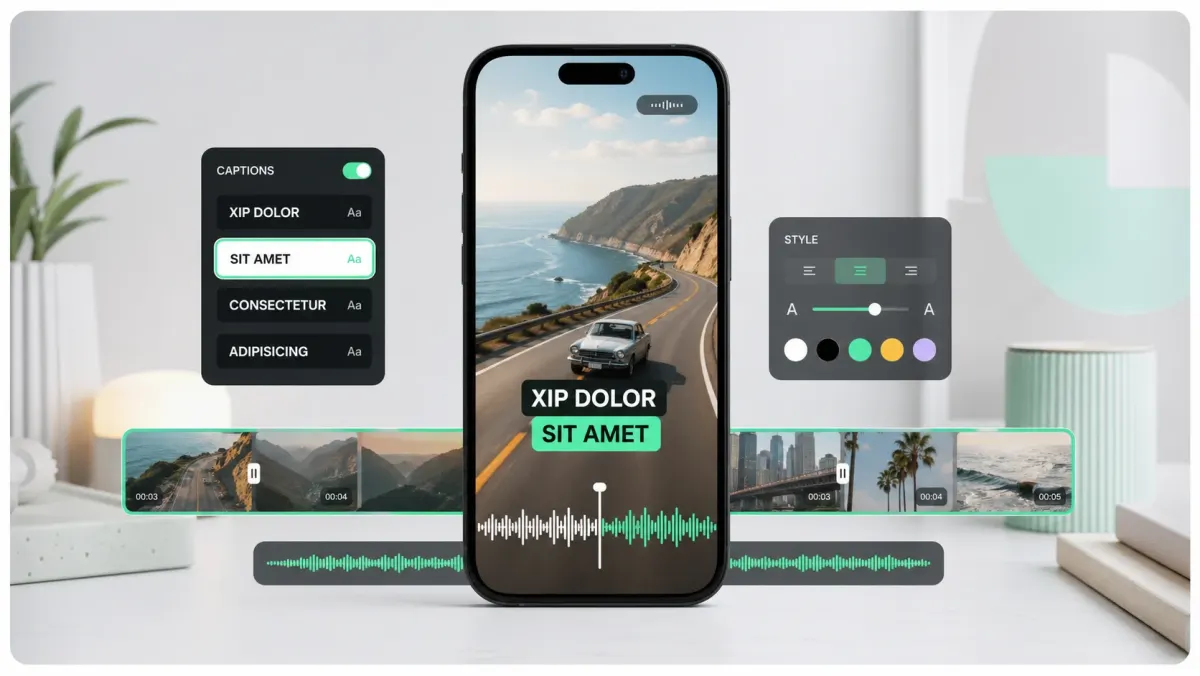
To add auto captions in Canva, open your video design, go to Text in the side panel and choose Captions under Dynamic text (or search Apps for "Captions"), pick a caption style, and click Generate captions. Canva transcribes the speech in your video or audio and adds editable captions to the timeline, which are burned into the video when you download it as an MP4.
Below: the exact steps, how to edit and style the captions, which languages work, what's free, and the limits worth knowing before you build a workflow around it. Canva's help pages and feature pages were checked in October 2026; Canva updates its editor often, so button names can shift.
How to add auto captions in Canva, step by step
- 01Create or open a video design (for Reels and TikTok, use a 1080×1920 Mobile Video or Instagram Reel design).
- 02Upload your video (MP4, MOV, WEBM, MKV, MPEG or GIF) and drag it onto the page. Wait until the upload finishes; captions can't be generated while it is still processing.
- 03Click Text in the side panel and choose Captions under Dynamic text. You can also find it by searching Apps for "Captions".
- 04Pick a caption style pack. Each one bundles a font, colour and animation.
- 05If your design has several clips, use Apply captions to and untick any clip you don't want captioned.
- 06Click Generate captions. Canva transcribes the speech and places the captions on the timeline.
- 07Play it back and fix any wrong words by editing the caption text.
- 08Click Share > Download, choose MP4 video and download. The captions are part of the video.
How to edit and style Canva captions
- Change the style: select a caption on the timeline, open Captions, then Styles, and switch to another of the 20+ style packs. The change applies to all captions.
- Animate the words: per-caption animations include Reveal, Highlight and Snake. Highlight colours each word as it's spoken.
- Fix the text: select the caption and edit it like any text element. Proofread names, prices and numbers.
- Brand fonts: applying your Brand Kit font in one click is a Canva Pro feature.
- Position: move the caption block up so it clears the bottom of the frame on 9:16 video, where TikTok and Instagram put their buttons and descriptions.
Languages
Canva's help center lists around 70 languages for caption generation, from Afrikaans to Welsh, though not every caption style pack is available in every language. Separately, Canva's video translator can translate captions into 100+ languages. Pick the right language when you generate: the wrong one produces garbled captions.
Is Canva's auto caption generator free?
Canva markets caption generation as free to use, so you can try it on a free account. Its Pro plan page, however, lists unlimited use of captions with colours, stylings and animations as a Pro benefit, which suggests free accounts may hit limits on styled captions; Canva doesn't publish the exact cap. Brand-font styling needs Pro. If you see an upgrade prompt, that is the reason, not a bug.
| Canva Free | Canva Pro | |
|---|---|---|
| Generate captions from speech | Yes (Canva calls it free) | Yes |
| Styled and animated captions | Yes, usage may be limited | Unlimited |
| Brand Kit fonts in one click | No | Yes |
| Captions in MP4 download | Burned in | Burned in |
| Download SRT / VTT caption file | No | No |
| Import an SRT file | No | No |
What Canva captions can't do
- No caption file export: Canva's help pages describe no way to download an SRT or VTT. For YouTube, Vimeo, LinkedIn or a course platform that wants a closed-caption file, you need a separate tool.
- No SRT import: you can't bring in an existing subtitle file; Canva always generates from audio (or you type captions manually as text).
- Burned in only: downloaded MP4s carry captions as part of the picture, so viewers can't turn them off. Image and PDF downloads don't include captions.
- Two different "captions": Canva also has view-only accessibility captions (the Show captions button in presentations and video players inside Canva). Those are auto-generated, can't be edited and can't be downloaded; they're not what you want for social video.
Canva caption generator for social posts (Magic Write)
If you searched for a Canva caption generator to write the text under an Instagram or TikTok post, that's a different tool. Canva's AI caption generator for social posts runs on Magic Write (and caption apps in the Apps panel): describe the post, and it drafts caption copy and hashtags. It doesn't touch your video. Free accounts get a limited number of Magic Write uses; Pro raises the limits.
When Canva captions are enough, and when to use SoCaptions
Canva captions are enough when you're already designing the video in Canva, the clip is short, the language is common, and you only need captions burned into an MP4. You stay in one tool, and the style packs look good out of the box.
A dedicated caption tool is the better fit when:
- You need an SRT or VTT file for YouTube, Vimeo, LinkedIn or an LMS. SoCaptions exports SRT and VTT free on every plan, alongside the burned-in MP4.
- You want short-form caption styles Canva doesn't have. SoCaptions has 13 styles, including Hormozi, Karaoke, Highlight Box, Bubble and Minimal, each with a spoken-word highlight (colour, box or karaoke) and editable fonts, outline, shadow and background.
- Accuracy matters. SoCaptions transcribes with Whisper in 99 languages with word-level timing, and you fix the transcript word by word before exporting.
- The video is already edited elsewhere and captions are the only job left. Upload the MP4, MOV or WebM (up to 5 GB) in the browser and export; there's no design to set up.
- You want the captioned MP4 at the source resolution and frame rate, without a watermark (Pro).
Pricing for comparison: SoCaptions is free for the first 5 minutes of transcription; Pro is $5 a month or $50 a year for 100 minutes of transcription and 100 minutes of MP4 export each month.
FAQ
How do I add captions to a video in Canva?
Select the video, open Text > Captions (under Dynamic text), choose a style and click Generate captions. Edit any wrong words, then download as MP4; the captions are burned in.
Does Canva have auto captions?
Yes. Canva transcribes speech in uploaded videos and audio and turns it into editable, animated captions. It works in around 70 languages according to Canva's help center.
Is Canva auto captions free?
You can generate captions on a free account; Canva lists unlimited styled and animated captions as a Pro benefit, so heavy use may need Pro.
Can I export captions from Canva as an SRT file?
No. Canva only burns captions into the MP4 and doesn't offer an SRT or VTT download. Generate the caption file with a separate tool if a platform needs one.
Can I upload an SRT file to Canva?
No. Canva has no subtitle import. Either let Canva generate captions from the audio, or burn your SRT into the video with another tool and bring the finished MP4 into Canva.
Why is Canva not generating captions?
Usually because the video is still uploading, the clip has no audible speech, or the wrong language is selected. Wait for the upload to finish, check the audio isn't muted, and pick the spoken language before generating.
How do I add subtitles in Canva on my phone?
Canva says captions can be generated, edited and styled in the mobile app too. Open the video design, select the video and look for Captions in the toolbar or Text options; the flow mirrors the desktop steps above.